Windows 11 offers multiple ways to take screenshots, from quick keyboard shortcuts to advanced tools like the Snipping Tool. This guide details seven methods for capturing your screen, whether you want a full-screen grab, a specific window, or even a screen recording. Knowing these options streamlines tasks like saving documents, sharing memes, or documenting issues —essential skills for any PC user.
The Snipping Tool: Your All-in-One Solution
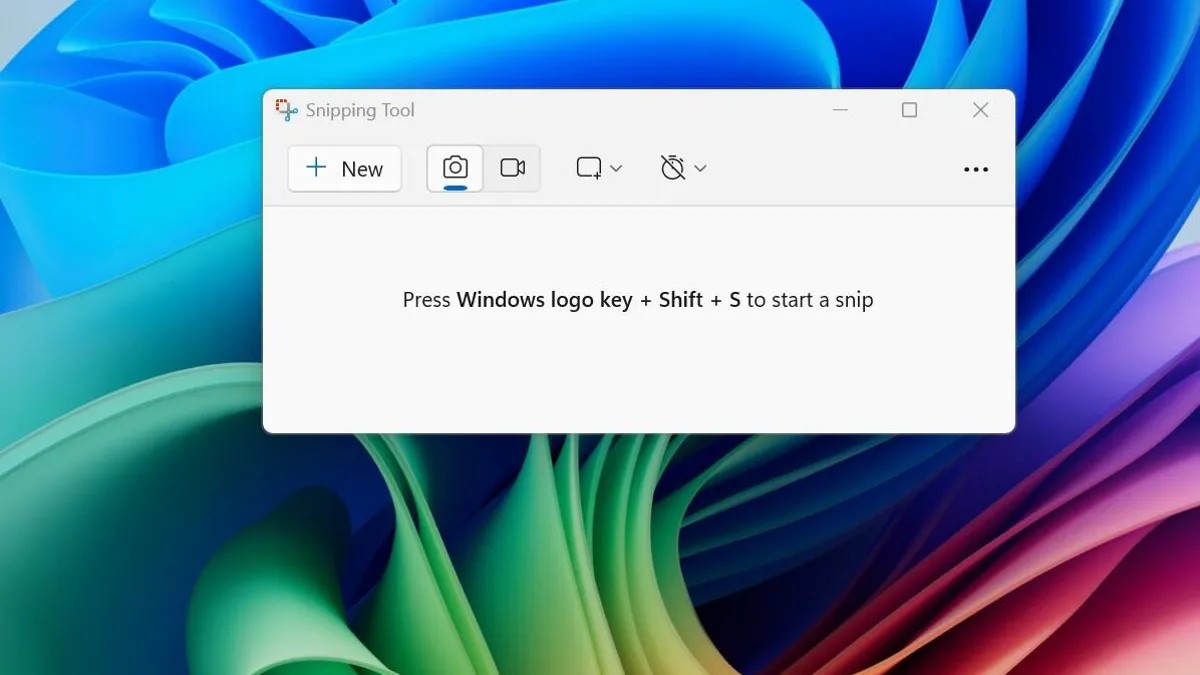
The built-in Snipping Tool is the most versatile option. Activate it using the Windows key + Shift + S shortcut, which dims your screen and brings up a small panel. From here, you can choose between:
- Rectangular snip: Drag a box around the area you want to capture.
- Freeform snip: Draw an irregular shape to select a custom area.
- Window snip: Click on a window to capture it entirely.
- Full-screen snip: Captures the entire display.
Screenshots are saved to your clipboard and briefly appear as a notification in the lower-right corner. Click the notification to open the image in the Snipping Tool for immediate editing, saving, or sharing. Missing the notification? Check the notification panel. The Snipping Tool can also record video with sound by selecting a portion of the screen and clicking “Start.”
Alternative Access : The Snipping Tool can also be opened from the Start menu or taskbar, though this requires an extra step (clicking “New” to begin capturing). This method allows you to delay screenshots by 3, 5, or 10 seconds.
Keyboard Shortcuts for Speed
For quick captures, these keyboard shortcuts are invaluable:
- Print Screen (PrtScn): Captures the entire screen to the clipboard. Paste into an image editor (like Paint) to save.
- Windows key + Print Screen: Captures the entire screen and saves it directly to
Pictures > Screenshots. - Alt + Print Screen: Captures only the active window to the clipboard.
- Fn + Windows key + Spacebar: A workaround for laptops lacking a dedicated Print Screen key; saves to
Pictures > Screenshots.
These shortcuts bypass the need for apps or tools, making them ideal for fast documentation.
Leveraging the Game Bar
The Game Bar, designed for gamers, can also capture screenshots. First, ensure “Record game clips, screenshots, and broadcasts using Game bar” is enabled in Settings. Then:
- Press Windows key + G to open the Game Bar.
- Click the screenshot button within the Game Bar.
- Use Windows key + Alt + PrtScn for a full-screen capture.
Customize the Game Bar’s shortcut in Settings > Gaming > Game bar.
Surface Device Shortcut
Microsoft Surface devices offer a unique physical shortcut: hold the Windows logo button while pressing the volume-down button. This captures the entire screen and saves it to Pictures > Screenshots.
This method is particularly useful for quick, one-handed captures.
In conclusion, Windows 11 provides a wide range of screenshot options to suit different needs. From the versatile Snipping Tool to rapid keyboard shortcuts, mastering these methods ensures you can efficiently capture and share any visual information on your screen.