The Apple Watch is more than just a notification center on your wrist. Whether you’re a new owner of the latest Series 11, SE 3, or Ultra 3, or still using an older model running WatchOS 26, the device packs a surprising number of features that enhance functionality beyond basic timekeeping. Many users stick to the core features, but unlocking the full potential requires just a little exploration. Here’s how to get more from your Apple Watch.
Rediscover Swipe-to-Switch Watch Faces
For a long time, Apple allowed users to swipe the edges of the screen to quickly switch watch faces. The feature was removed due to accidental activations, but it’s back. In WatchOS 10.2 and beyond, including the current WatchOS 26, enable this shortcut by going to Settings > Clock and toggling Swipe to Switch Watch Face on. This eliminates the need for multiple taps to quickly change between your workday and workout displays.
Monitor Your Heart Health with Vitals
Your Apple Watch isn’t just a fitness tracker; it’s a basic health monitor. Wearing it overnight allows the Vitals app to gather detailed data on your heart rate, respiration, body temperature (if supported), and sleep duration. The app analyzes trends over seven days, alerting you to any irregularities. Newer watches in the US handle blood oxygen readings differently due to legal issues, sending the data to the Health app on your iPhone instead of displaying it directly in Vitals. This data provides a baseline for what’s normal for you, making deviations more noticeable.
Understand Your Sleep Score for Better Rest
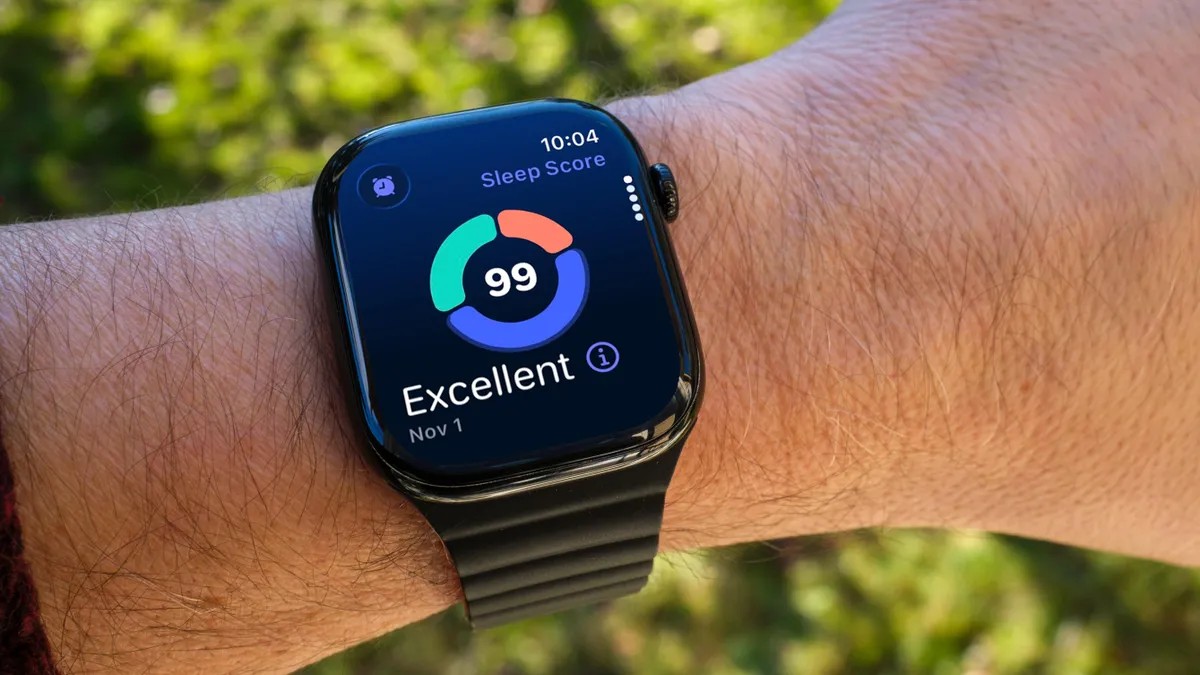
The Sleep Score feature, available in WatchOS 26, analyzes your sleep duration, bedtime consistency, and wake-up frequency to assign a score between 0 and 100. This, combined with Vitals data, helps you identify patterns that impact your rest. If you’re consistently tired, the data might point to bedtime adjustments needed to improve overall sleep quality.
Master the Wrist Flick Gesture
The Wrist Flick gesture, available on Series 9, Ultra 2, and Ultra 3, is a quick motion to dismiss notifications, calls, or any on-screen element. It’s also a shortcut to return to the watch face from deep within settings. Practice this gesture to interact with your watch without tapping the screen, especially in situations where your hands are occupied.
Customize the Smart Stack for Quick Access
The Smart Stack provides access to contextual information that doesn’t fit neatly into watch face “complications.” Swipe from the bottom of the screen or turn the Digital Crown clockwise to reveal tiles for weather, suggested memories, and more. This is especially useful for minimal watch faces lacking complications.
Control Live Activity Notifications
Live Activities, like food delivery updates, automatically appear in the Smart Stack and can take over the watch face. If you find these disruptive, disable them by going to Settings > Smart Stack > Live Activities and toggling off Auto-Launch Live Activities. You can also disable Live Activities entirely if you prefer a cleaner experience.
Pin Favorite Widgets in the Smart Stack
The Smart Stack’s algorithm adapts over time, but you can also pin widgets for instant access. For example, if you frequently use a 10-minute timer, add it to the stack by editing the stack (tap the Edit button at the bottom or touch and hold the screen in WatchOS 11), selecting the Timers app, and pinning the widget for priority display.
Turn Your Watch Into a Flashlight
The Apple Watch can function as a flashlight by making the entire screen emit light. Access it via Control Center (press the side button, then tap Flashlight) and adjust brightness with the Digital Crown. Swipe left for a flashing mode (useful for visibility while running), or swipe again for a red light.
Pause Your Activity Rings When Needed
Closing your Apple Watch’s activity rings can be motivating, but life happens. WatchOS 11 introduces a “Pause Rings” feature, allowing you to temporarily suspend ring progress without losing your streak. Access this through the Activity app (Weekly Summary > Pause Rings) and choose a pause duration that suits your situation.
Conclusion: The Apple Watch’s true potential lies beyond basic functions. By exploring these features, users can tailor the device to fit their needs, maximizing its benefits for health, productivity, and daily convenience.