
There is nothing quite as nauseating as the spinning wheel of death. You are three clicks away from finishing a report. The cursor hangs. The screen freezes. Your heart rate spikes. Mac users know this specific flavor of panic well. When an application stops responding, you are not stuck. You have a hierarchy of solutions. Start small. Escalate only when necessary.
Try the Standard Quit First
Before you nuke the process, check if a normal exit works. Sometimes the lag is temporary.
Go to the app menu in the top-left corner. Select Quit. Or use the keyboard shortcut: Command (⌘)-Q. If the app closes, you are done. No drama. No data loss. Move on.
Right-Click for Hidden Options
If the menu is unresponsive, try the dock or the toolbar. Right-click (or Ctrl-click) the app icon.
Look closely at the menu that appears. Press and hold the Option key. The “Quit” option will morph into Force Quit. Click it. This is a softer approach than a hard kill. It asks the app to close cleanly but with more urgency than a standard quit.
Use Activity Monitor for Control
The app still refuses to die? Open Activity Monitor.
Click the Spotlight icon (magnifying glass) in the top-right corner. Type “Activity Monitor” and hit Return. You are now in the task manager.
- Find the frozen app in the list.
- Click the Stop Sign icon in the toolbar.
- Confirm the action.
This sends a termination signal. Your Mac will verify you really want to quit the process. It usually works.
The Force Quit Shortcut
If Activity Monitor feels like too many steps, use the direct command.
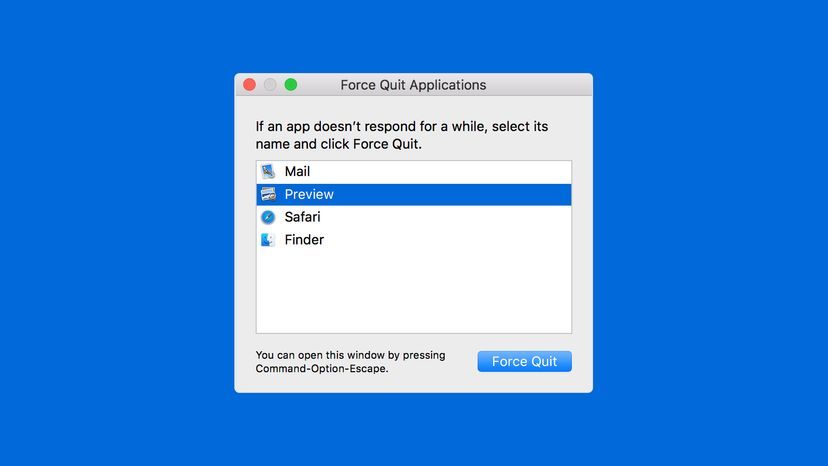
Press Option, Command, and Esc simultaneously. This opens the Force Quit Applications window. You will see a list of every running app.
Look for the one marked “Not Responding.” It is usually grayed out. Click it. Hit Force Quit.
If Finder itself is frozen, you can force quit it here too. The system will relaunch it automatically.
Terminal: The Nuclear Option
For advanced users, or when the GUI fails completely, there is the Terminal.
- Open Applications > Utilities > Terminal.
- Type
topand hit Return. - Watch the CPU and RAM diagnostics.
- Find the unresponsive app in the Command column.
- Copy the PID (Process ID) from the leftmost column. Use Cmd + C to copy.
- Open a new Terminal window.
- Type
kill -9(note the space). - Paste the PID using Cmd + V (or paste manually).
- Hit Return.
You should see a message like Kill 93142. Check your toolbar. The dot under the app icon should vanish. It is gone.
Why This Matters
Force quitting is not just about clearing space. It is about recovering control. When software hangs, it often holds onto memory or locks files. A clean quit releases these. A force quit kills the process. Both prevent data corruption.
Not every freeze requires a force quit. Sometimes a restart is the only way. But knowing how to target the specific process saves time. It saves frustration. And it keeps your workflow moving.
The wheel stops. The screen clears. You are back in control. For now.
The Nuclear Option: Restarting
Sometimes the freeze is just too deep. The cursor is gone. The fan is screaming. You’ve tried waiting, and you’ve tried clicking. Nothing moves.
In these moments, the hard reset becomes the only path left. It is the digital equivalent of pulling the plug. You hold down the power button until the screen dies. The machine goes dark.
There is a cost for this convenience.
Any unsaved work? It is gone. The document you were typing? Lost. The browser tabs you hadn’t bookmarked? Vanished. The system forces a complete shutdown. It does not care about your workflow. It cares about stopping the process.
But here is the thing. When the software is truly broken, you have no choice. The operating system hangs. The kernel panics. The hardware ignores input. A graceful shutdown is no longer an option.
“If all else fails, you can always shut down your computer entirely, although you may lose some or all of what you’ve been working on.”
It is a blunt instrument. It resets the state. It clears the memory. It gives you a fresh start when everything else has failed.
Is it frustrating? Yes.
Is it effective? Usually.
You press the button. The lights go out. You wait. Then you press it again. The machine wakes up. You lose the last hour of work. You save the rest.