Apple isn’t done messing with your interface. The rumor mill chews up iOS 27 already. Siri overhauls? Camera tweaks? Who knows what’s cooking for WWDC.
But we aren’t there yet. We are here. And right now, iOS 26 just landed in September 2024 (or whenever the timeline gets real).
It’s not about Siri. It’s not about the camera.
It’s the lock screen. Again.
Bigger isn’t just better
Remember iOS 18? Good times. Apple finally let you nix the controls. No more flashlight triggers in your pocket while trying to walk into a store. A small victory against accidental disasters.
iOS 26 takes another step.
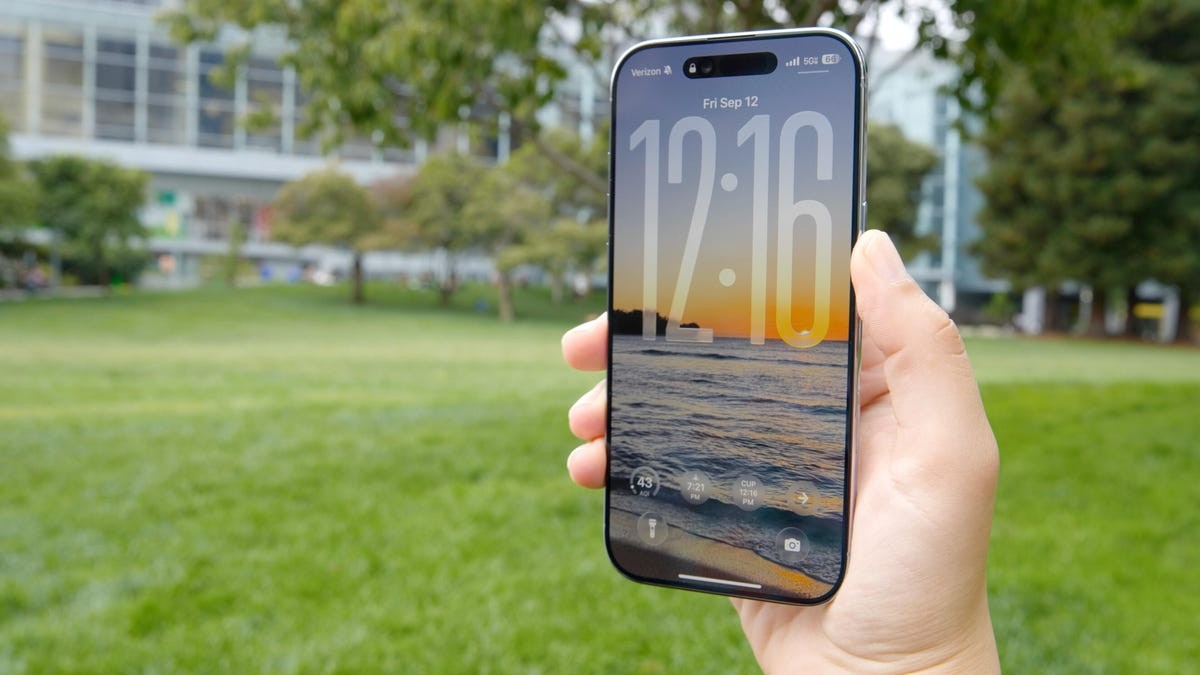
The clock can be huge now.
Seriously huge. On an iPhone 16 Pro, this new size eats up nearly a third of the screen. I love it. Why? Because I lose my glasses. I leave the phone on the table. I need to know what time it is without squinting like I’m reading a tax document.
It’s not automatic, though. You have to dig for it.
Go to Settings. Find Wallpaper. Tap Customize on the face you like. You’ll see outlines everywhere. That thicker tab on the bottom right of the clock outline? Drag it. Down. Keep dragging until the numbers loom large over your digital life.
Once the size is set, you get to play dress-up. Glass or solid? Thin borders or thick? Go wild. Just don’t try changing the font family itself. That option remains locked, at least for the far-left style. Maybe next year. Maybe not.
Moving pieces around
The widget dock is moving house.
Used to be it stayed put. Now you can shove it near the bottom. Right above the flashlight and camera shortcuts.
If you expanded the clock like a proper fan of utility, the system does it for you. It dumps the dock to the bottom so your huge clock has room to breathe. You can’t fight this logic. It’s either big clock + bottom dock or status quo. Pick your poison.
To force it manually if the clock stays small, you go back to the same Settings > Wallpaper > Customize path. Tap and drag. Simple enough.
Walls that breathe?
Spatial effects.
That’s what Apple calls them. “Spatial scenes.” Sounds expensive. Feels cheaply fun.
It turns your static wallpaper into something that has depth. You tilt the phone, the foreground shifts. The background lags behind. It pops out. Actually pops. Like a 3-D movie but for your morning coffee scroll.
Turn it on in that same customize menu. Look for the hexagon icon. Tap it. Done.
Catch is? It’s picky. It hates Apple’s own wallpaper collection. The Weather ones? The Emoji clouds? Forget it. Bring your own photos. Snap a pic of your cat, your keys, a blurry street corner. Feed that to the phone and watch the spatial magic happen.
Color coded chaos
Smaller news? The controls got colorful.
Not just white anymore. The shortcuts at the bottom of your lock screen now match the icon. The camera looks like the camera. The flashlight glows. It’s a subtle pop, sure, but it breaks the monochrome boredom Apple inflicted on us for years.
You don’t have to turn it on. iOS 26 just does it. Add a control. See the color. Enjoy it.
Still not free
Apple is loosening its grip. Slowly. Glacially.
They let you customize how they let you customize. It’s progress. Barely. But progress nonetheless.
Big clock. Movable widgets. 3D walls.
Is it perfect? No. I still wish I could stick that widget dock wherever I damn well pleased, regardless of the clock size. I’d pay for that feature alone.
But they’re listening. Sort of. The door is creaking open. Let’s see how far they kick it.