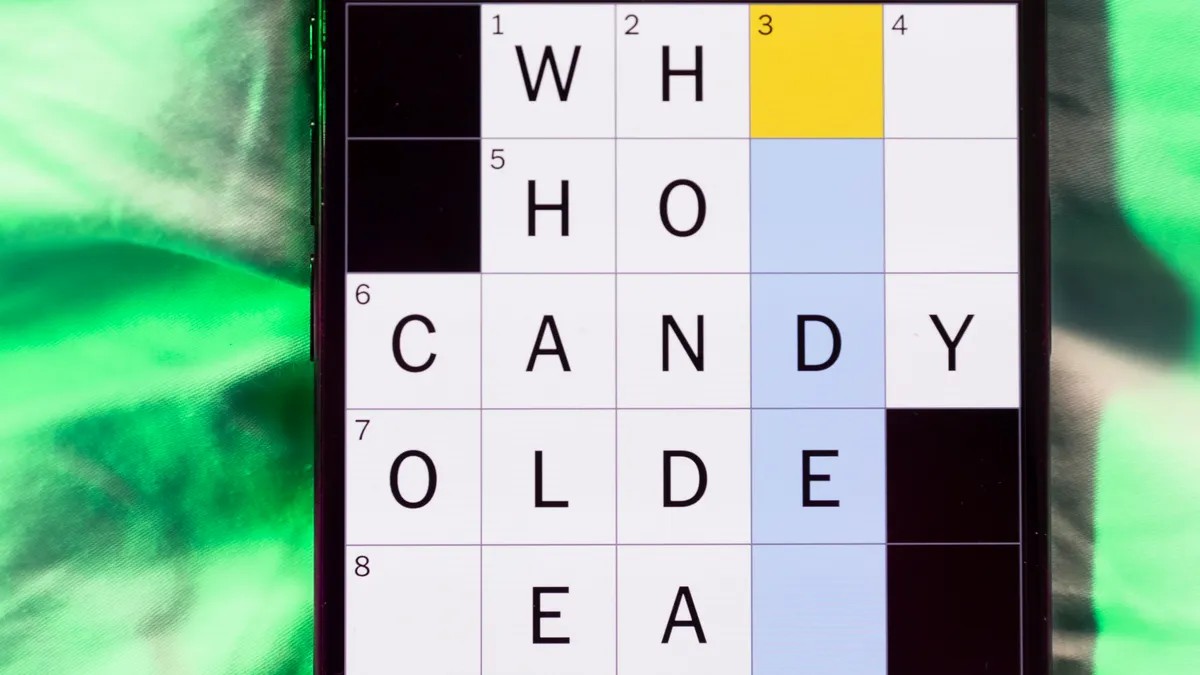
Steve Jobs killed off years of rumor in 2010 with a single announcement: the iPad. It didn’t just launch a product. It launched a new era in computer hardware.
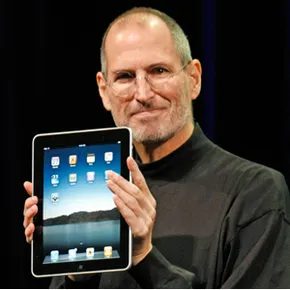
Tablet PCs had been around for a while. They were niche, clunky, and rarely successful. The iPad changed that. It was the first device to make the form factor work for the average consumer. Apple’s dominance forced other companies to look at the market and ask what they could do differently. Tech enthusiasts wanted alternatives. They weren’t happy with just one option.
But what actually defines a tablet?
At its core, a tablet PC is a mobile computing device. It is larger than a smartphone. It is larger than a personal digital assistant. There is no strict cutoff for size. The original iPad was just under 10 inches. Some are smaller. Some are larger. If a device uses an on-screen interface and lacks a physical phone component, it’s a tablet.
Confusion arises because manufacturers started mixing categories. We got hybrids. Part tablet. Part laptop. Some come with attached keyboards. The screen swivels. It folds down. Suddenly you have a laptop with a keyboard and a tablet with a screen.
Lenovo showed us this early on. In 2010, at the Consumer Electronics Show in Las Vegas, Nevada, they introduced a prototype called the IdeaPad U1. It looked like a standard laptop. Detach the screen from the base, and it became a standalone tablet. It ran its own independent operating system. Lenovo rebranded it as the Lenovo LePad. They launched it in China in 2011.
Tablets vary wildly in shape and feature sets. They share common ground, though. Almost all have a touch-screen interface. They run an operating system capable of executing small programs. They don’t necessarily replace your desktop or your main laptop. They create a new space.
Let’s look at what makes tablets tick.
The Hardware Foundation
You need a screen. A touch-sensitive one. Without that, you’re just carrying a slab of glass. The processor needs to handle input without lag. The battery needs to last longer than a few hours.
The Software Layer
The operating system is key. It has to support touch gestures. Swipe. Pinch. Tap. It can’t rely on a mouse. It can’t rely on a keyboard.
The Use Case
Why do we buy them?
- Portability. You can hold one hand. You can’t hold a laptop.
- Immediate use. No booting up. No waiting for the OS.
- Media consumption. Watching videos. Reading books.
Does it replace your main computer?
Not always.
For some people, yes. For others, it’s a secondary device. A companion.
The line between tablet and laptop blurs every year. The devices get more powerful. The keyboards get detachable. The screens get higher resolution.
What happens next?
We’ll see.
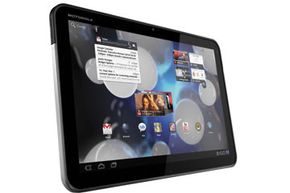
Open up a tablet. You don’t need to be a hardware engineer to see the design philosophy. The warranty is void. The components are jammed together with zero wasted space. And the parts look suspiciously familiar. You are looking at a computer, just a smaller, quieter version.
The processor is the brain. But it’s not the same brain as your desktop. Tablets use smaller chips. This isn’t just about fitting into a slim case. It’s about heat. Computers hate heat. Heat kills mechanical parts. It causes failures. By using a smaller processor, manufacturers keep the device cool.
Power comes from a rechargeable battery. You can expect eight to ten hours of life on average. Some models let you swap the battery yourself. Most don’t. Apple’s iPad and iPad 2 are notorious for this. You can’t just pop the back off. You have to take it to a store. Do it yourself, and you void the warranty.
Here is where it gets tricky for power users. Some tablets are intentionally weak. This is called underclocking.
The CPU executes commands in clock cycles. More cycles per second mean more instructions processed. Underclocking means the CPU runs fewer instructions per second than it is physically capable of. Why? To save battery. To reduce heat.
It feels like a slap in the face when you buy a device expecting peak performance. But most tablet software doesn’t need that extra power. The programs are different. They are simpler. We call them apps. They aren’t the complex, resource-heavy suites you run on a PC.
Besides the main chip and battery, there is a lot packed in there. You will find:
- accelerometers
- gyroscopes
- graphics processors (GPU)
- flash-based memory
- WiFi and cellular antennas
- USB dock and power supply
- speakers
- touch-screen controller chips
- camera sensors and lenses
The accelerometers and gyroscopes do the heavy lifting for orientation. They tell the screen whether to show portrait or landscape mode. The GPU handles the graphics. This takes the load off the CPU. Without the GPU, the main processor would choke on visual data.
Connectivity is handled by WiFi or cellular chips. Some models include Bluetooth receivers to talk to other devices. You won’t see a fan. There is simply no room for moving parts. The design is static. Sealed. Efficient.
Touch Screens and Tablets
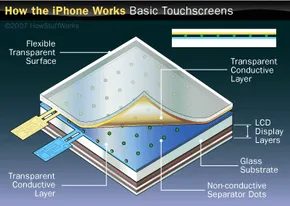
When engineers design a tablet, they are forced to pick a lane. Resistive or capacitive. You can’t have both. The choice dictates how the device responds to your fingers, how durable it is, and whether you need a plastic stick to get anything done.
Resistive screens are the old school workhorses. They rely on pressure. If you’ve ever used a stylus on an older PDA or a rugged industrial tablet, you were likely using a resistive display.
How Resistive Touch Screens Function
Under the glass, there’s a sandwich of sorts. You have a layer of resistive material sitting above a layer of conductive material. Spacers keep them apart when no one is touching the screen.
When the tablet powers up, an electrical current flows through both layers. Press down, and the layers touch.
That physical contact alters the electrical field at that specific spot. A microchip detects this change. It calculates the exact coordinates. The CPU then maps those coordinates to your operating system’s interface. Tap a game icon? The system launches the game.
It’s simple. It’s mechanical. It’s also fragile.
If you press too hard, you can force the layers to stay in contact. The screen thinks it’s being touched when it isn’t. Ghost touches. Misinterpreted commands. It’s a nightmare. Resistive screens also suffer from lower resolution compared to their capacitive cousins. The extra layers block some light, making images slightly dimmer and less sharp.
Why Capacitive Screens Dominated the Market
Capacitive technology takes a different approach. It doesn’t care about pressure. It cares about conductivity.
The screen has a layer that stores an electrical charge. Human skin is conductive. When your finger touches the glass, it draws a tiny amount of that charge away. The system detects this loss of charge and calculates your location.
This leads to a critical limitation. You can’t just use a pen or a rock to activate a capacitive screen. The object must be conductive. This is why we carry styluses made of conductive rubber or foam, not just hard plastic.
But the benefits are substantial. You don’t need to press down. A light tap works. This makes capacitive screens more robust. Fewer moving parts mean less wear and tear. Higher resolution is standard because the glass layer is thinner and more transparent.
The shift to capacitive touch is why modern tablets feel responsive. Your finger doesn’t need to fight the screen. It just needs to touch it.
Cold Weather and Conductive Limitations
There is a weird edge case where capacitive screens fail completely. Cold.
When temperatures drop, your fingers lose their ability to conduct electricity efficiently. The skin dries out. Blood flow recedes. The device simply doesn’t register your touch.
This isn’t just a hypothetical problem. In South Korea, where winters are brutal, users found a workaround reported by Popsci. They didn’t buy specialized gloves. They used the meat aisle.
Encased pork products, specifically sausages, became a makeshift input method. The fat and moisture in the meat provided enough conductivity to register a touch on a capacitive screen. It sounds absurd. It worked.
It highlights a fundamental truth about capacitive technology. It requires a specific physical property. Conductivity. Without it, the screen is blind.
Resistive screens didn’t have this problem. You could press a frozen, numb finger against a resistive screen and it would still work. Pressure is pressure. But that resilience came at the cost of clarity and durability.
The Trade-off That Defined Tablet History
We often take touch interfaces for granted now. We swipe. We pinch. We double-tap. We assume the technology just works.
But every swipe is the result of a manufacturing decision made years ago. Resistive offered reliability and pressure sensitivity. Capacitive offered clarity and ease of use.
The market chose capacitive. It’s why your phone doesn’t need a stylus. It’s why screens look crisp. It’s also why you can’t use it with thick winter gloves.
The evolution didn’t stop there. We’ve moved on to projected capacitance and multi-touch gestures. But the core principle remains. Detect a change in an electrical field. Calculate the location. Respond.
Whether you’re tapping with a finger or pressing with a stylus, you’re interacting with layers of material and electricity. The interface is invisible. But
Alan Kay saw it coming decades before the first touch-screen device shipped. In 1968, this computer scientist realized that flat-panel displays, miniaturized components, and emerging wireless tech could converge into a single, portable machine. He didn’t just imagine a gadget. He envisioned an educational tool for children. By 1972, he had published a paper defining the Dynabook.
The sketches looked familiar. Almost too familiar. Kay’s design featured a screen and a keyboard on the same plane, a layout that feels archaic now but was revolutionary then. He went further. He predicted that advanced touch technology would eventually make physical keys obsolete. Why type on plastic when you can project a virtual keyboard on the glass itself?
He was ahead of his time. It took nearly forty years for the market to catch up. But saying tablets didn’t exist between 1972 and the iPad is wrong. The technology was there. It just wasn’t ready for the mass market.
Early Attempts: The GRiDPad and Newton
The GRiDPad arrived in 1989. It wasn’t sleek. It weighed almost five pounds. Under the hood, it used a monochromatic capacitance touch screen and required a wired stylus. Battery life lasted three hours. Jeff Hawkins, the man behind it, later founded Palm, but the GRiDPad itself was a bulky novelty.
Then came the Apple Newton. It remains one of the most polarizing devices in tech history. Enthusiasts love its ambition. Critics mock its execution. The handwriting-recognition software was the primary target. It struggled with cursive. It misinterpreted scribbles. Users got frustrated. The device failed to gain serious traction.
Pen-based computing existed, but it lacked support. The hardware was too heavy. The software was too buggy. The price was too high.
The iPad Moment
Steve Jobs changed the equation. When he revealed the first iPad, the skepticism vanished. The device was light. The interface was intuitive. The app ecosystem was robust. Suddenly, tablets were a viable consumer product.
Before the iPad, tablets were niche tools for specialized industries or early adopters willing to endure glitches. After the iPad, they became mainstream. Apple proved that users wanted simplicity. They wanted portability. They wanted a device that bridged the gap between a phone and a laptop.
Today, the landscape is crowded. Google, Microsoft, and HP all compete for your attention. They try to predict what you need before you even know you need it. The design language has evolved. Screens are sharper. Processors are faster. Batteries last longer.
“It really wasn’t until Steve Jobs revealed the first iPad to an eager crowd that tablet computers became a viable consumer product.”
The core function hasn’t changed much from Kay’s vision. Tablets remain personal entertainment hubs. They are also productivity machines. Built-in sensors detect orientation. The screen rotates. Wireless connections allow them to double as phones. You can surf the web. Check email. Play games. Do the tasks that used to require a desktop.
But why did it take so long? The components existed in 1968. The software logic was sound. The barrier was human. Early users weren’t ready for the trade-offs. They weren’t ready for the limitations of early touch interfaces. They wanted a laptop that fit in a bag. They didn’t want a clunky slab with a stylus.
The iPad solved that friction. It removed the physical keyboard. It refined the touch input. It lowered the price point. It made the technology invisible. You don’t think about the screen. You think about the content.
Will tablets dominate forever? Maybe not. Foldable screens are emerging. AR glasses are on the horizon. The form factor continues to shift. But for now, the tablet sits in your hand. It’s lighter than the GRiDPad. Smarter than the Newton. Closer to what Alan Kay drew on paper fifty years ago.
The revolution wasn’t sudden. It was a slow burn. From a theoretical paper to a heavy prototype to a cultural staple. The hardware caught up to the vision. The software followed. Now, it’s just about what comes next.