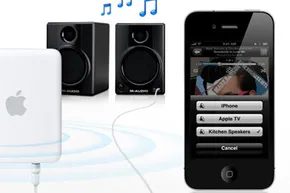
Apple is pushing hard for a wireless, whole-home audio and video experience. The vehicle for this ecosystem shift is Apple AirPlay, a protocol designed to move media between devices without the tangle of HDMI or auxiliary cables.
It works differently than streaming from Pandora or YouTube. Those services pull content from the cloud. AirPlay streams from your local network. You take a file or a live stream from a source device—like an iPhone or iPad—and push it to receivers on the same Wi-Fi network. These receivers can be smart TVs, Apple TVs, or compatible stereo systems.
The Mechanics: Source vs. Receiver
AirPlay relies on two distinct roles. You need a source and you need a receiver.
The source is the device initiating the stream. It must run software that supports the protocol. The receiver is the endpoint. It plays the audio or video and displays metadata, like the artist name or track title. Crucially, one source can feed multiple receivers simultaneously.
This isn’t just about plugging speakers into a phone. It’s about networked distribution. You can keep the music playing while you walk through the house, switching the output device on the fly.
Hardware and Software Requirements
Support for AirPlay has evolved since its introduction. If you are trying to get this working on older gear, the compatibility list is specific.
Compatible Sources:
* iPad (any generation)
* iPod Touch (2nd generation or later)
* iPhone 3G and 4
* Apple TV (2nd generation)
* Mac computers running iTunes 10.2 or later
These devices must run iOS 4.2 or later. The apps you use to consume media must also explicitly support AirPlay. If the app doesn’t have the AirPlay icon, you can’t push the stream.
Compatible Receivers:
* Apple TV (the only receiver capable of streaming HD video and photos)
* Apple AirPort Extreme base station (acts as an audio-only receiver)
* Third-party stereo systems with AirPlay certification (availability varies by manufacturer)
How to Use AirPlay in Practice
The workflow is straightforward if your network is stable. Imagine you are listening to music on your iPhone. You want the sound in your bedroom and your living room.
- Turn on the AirPlay-enabled stereo in the bedroom.
- Ensure your Apple TV is connected to the Wi-Fi.
- On your iPhone, open the music app.
- Tap the AirPlay button.
- Select both the stereo and the Apple TV as destinations.
The music now streams to both devices. As you move from room to room, the audio follows you, or stays in the room you left, depending on how you manage the selection. There is no interruption in playback as you switch targets, provided the network bandwidth can handle the load.
Why This Matters Now
The appeal of AirPlay is the separation of content creation from content playback. You curate the library on your phone or computer, but you distribute it to the best speakers in the house. It turns a single device into a hub for your entire home’s entertainment.
However, it isn’t without friction. The requirement for specific app support means you can’t AirPlay just anything. The video limitations on non-Apple-TV receivers mean your high-def movies stay on the set-top box. And the reliance on Wi-Fi means network congestion can cause stuttering.
We will look at how to actually enable these settings, the limitations that frustrate users, and how AirPlay compares to competitors like Chromecast or Bluetooth. First, let’s look at the setup process.
How to Connect AirPlay Devices
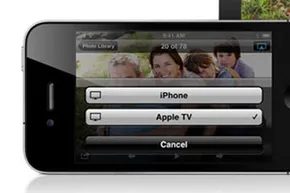
AirPlay isn’t magic. It’s a protocol that demands your devices share a local network first. You can’t stream from your phone to your TV if they’re on different subnets. The connection usually happens over Wi-Fi. Sometimes Ethernet. Bluetooth? Technically yes, but don’t let that fool you. AirPlay uses Bluetooth for discovery, not data transfer. It spots the device, shakes hands, and then hands off to Wi-Fi for the heavy lifting. You manage these Bluetooth-found devices alongside your standard network options. It’s seamless until it isn’t.
Network Configurations for AirPlay
Getting everything on the same page is the hard part. You have two main paths.
First, there’s the legacy Apple AirPort Express. This tiny router was designed specifically for Apple’s ecosystem. It didn’t need an internet connection to function. You plugged stereo equipment directly into it. The Express acted as the receiver or the source. It was plug-and-play. No extra setup. It just worked. Apple discontinued it, but it’s still out there in the wild.
If you don’t have an AirPort Express, you use your existing router. Most households already have one. You share a single internet connection across multiple computers. You just need to ensure every AirPlay-enabled device connects to that same Wi-Fi network. If your router is outdated, you might hit snags. But generally, if it has Wi-Fi, it can handle AirPlay.
Discovery and Selection
Once the hardware is connected, the software does the rest. Source devices scan for receivers. Add an iPad to the network. Open iTunes. The app immediately sees the Apple TV in the living room. It also sees the AirPlay-enabled speakers in the bedroom. They appear as potential outputs.
Using it is straightforward. An AirPlay-enabled app scans the local Wi-Fi. When it finds a compatible receiver, the AirPlay icon pops up in the interface. Click it. Pick the device. Stream starts.
But there’s a catch. You won’t see the AirPlay icon when trying to share media between two computers on the same network. iTunes has a built-in library sharing feature for this. AirPlay is redundant there. It’s designed for sending content out to displays or speakers, not just between Macs. If you want to know why streaming feels so different than downloading, check out how streaming video and audio actually works under the hood.
The Pros and Cons of Apple AirPlay
AirPlay is convenient. It removes cables. It lets you push high-resolution audio to a Hi-Fi system without buying expensive DACs for every room. Video streaming to an Apple TV is smooth. Almost always. But it’s not flawless.
Latency exists. If you’re watching a movie, it’s fine. If you’re trying to play a rhythm game, the delay will kill the experience. Network congestion also matters. If five people are downloading 4K movies on the same Wi-Fi band, your AirPlay stream might stutter. It depends on your router’s quality. Cheap routers choke on constant data streams.
Security is another angle. AirPlay uses encryption. But it relies on your network security. If your Wi-Fi password is weak, anyone on the same network can potentially cast to your devices. You have to trust everyone who connects to your Wi-Fi. That’s a risk in shared spaces.
Then there’s the ecosystem lock-in. AirPlay works with iPhones, iPads, Macs, and Apple TVs. It also works with some Android devices and smart TVs that have licensed the protocol. But the experience is never as native as it is on Apple hardware. You lose features. You gain lag.
Does it matter? For most users, no. It just works. For audiophiles? They’ll complain. For tech enthusiasts? They’ll tinker. But the basic function remains the same. Send data. Receive data. Hope the network holds.
The future of wireless streaming is uncertain. AirPlay 3 promises better audio quality. Wider speaker support. But until then, we’re stuck with what we have. A good protocol. A few quirks. And a network that must stay connected.
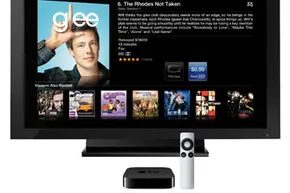
The hype around AirPlay often paints it as a seismic shift in how we handle home entertainment and local data sharing. There is logic to the excitement. The ecosystem is expanding. More iOS apps—on iPads, iPhones, and iPod touches—now support streaming output natively. When paired with an Apple TV, your mobile device transforms into a handheld command center. You can queue up music, movies, or photo slideshows on the big screen while still checking email or playing Angry Birds on the phone itself. The separation of control and display works.
Audio streams carry metadata like artist names and track titles, which compatible receivers display on their own screens. Setup is surprisingly frictionless. Enable AirPlay on your devices, and it just works. No complex configuration. If you are streaming HD video from a supported source, AirPlay pushes that high-definition quality to Apple TV 2 or later.
But the technology is not without friction. Critics point to rigid constraints. For instance, multiple receivers streaming from the same application play identical content. You cannot branch off to access separate content from that same source simultaneously. Only one app can use AirPlay at a time. Video sharing is locked exclusively to Apple TV devices. Furthermore, copy-protected video requires the Apple TV to have an active internet connection.
WiFi generally outperforms Bluetooth for these streams, yet the connection can drop occasionally during playback. And despite efforts by other manufacturers to build AirPlay-enabled hardware, it remains primarily an Apple-centric feature.
The Cost of Compatibility
Streaming to anything other than a computer requires hardware. You need an Apple TV or an AirPort Express. At the time of this analysis, both cost $99. Alternatively, you can experiment with third-party devices that support the protocol.
Is this a clever sales tactic to move more Apple TV units? Or is it a pure revenue stream? Apple charges manufacturers a $4 licensing fee for every AirPlay-enabled device they sell. Either way, the barrier to entry for non-Apple hardware exists.
How Apple AirPlay Compares to Other Media-Sharing Technologies
We have focused on AirPlay’s relationship with Apple products. Now, we need to look at the broader landscape. Who is partnering to offer AirPlay compatibility outside of the Cupertino walled garden? And how does this technology stack up against rivals like DLNA, Chromecast, or Bluetooth audio?
The comparison matters because users are not limited to Apple’s ecosystem. They often own mixed devices. The question becomes: does AirPlay’s convenience outweigh its limitations when compared to open standards? The answer depends on what you value more: seamless integration within a single brand or open flexibility across different manufacturers.

The Hardware Tax on Apple’s Free Streaming
Getting started with AirPlay is technically free if you own an Apple device. Getting it to work everywhere else? That depends on how much you’re willing to spend.
By mid-2011, Apple had signed up a mix of high-end audio partners. You have the heavy hitters like Denon and Marantz, which build sophisticated A/V receivers for home theater systems. Then there are the standalone speaker makers: Bowers & Wilkins, JBL, and iHome.
Here is the catch. If you want to upgrade your existing receiver to handle AirPlay, you are looking at a two-part cost. First, the receiver itself runs several hundred dollars. Second, there is a specific $49.99 fee to unlock AirPlay support on that hardware. Unless you were already planning to buy a high-end receiver, that extra fee is hard to justify.
The standalone speakers are cheaper, but “cheap” is relative.
* Bowers & Wilkins Zeppelin Air : ~$600
* JBL On Air Wireless : ~$350
* iHome iW1 : ~$300
So, while the software is free, the ecosystem is expensive. Will people actually open their wallets for this? Time will tell if AirPlay becomes a primary selling point for Apple or just a nice-to-have feature.
The DLNA Alternative
While Apple builds its walled garden, the Digital Living Network Alliance (DLNA) has been working in the background since 2003.
DLNA is not a company. It’s a consortium of over 245 members, including Microsoft, Sony, Sharp, Logitech, Cisco, and Nvidia. Apple is conspicuously absent. The group’s goal is simple: interoperability. They published their guidelines in June 2004 and created a certification program to ensure different brands could talk to each other.
The result? DLNA-certified devices have far more interoperability than early AirPlay setups.
Consider how media flows on a DLNA network. You have a Digital Media Server (DMS), like a PC or NAS drive. You have a Digital Media Player (DMP), like a smart TV or Blu-ray player. The player accesses the server directly. You don’t stream from a device; you stream from the source. It’s a more efficient architecture for local home networks.
Apple has always preferred to set its own standards. But can a single company’s protocol really overshadow years of industry-wide collaboration? As of June 2011, with the release of iOS 4.2 fueling AirPlay’s growth, it’s too early to say who will win the home streaming war.
AirPlay Setup and Compatibility Guide
How do I get AirPlay on my TV?
It starts with the network. Both your source device (iPhone, iPad, PC) and your TV must be on the same local Wi-Fi network.
- On PC/Mac : Open iTunes or the specific app you want to stream from. Look for the AirPlay icon in the playback controls. Click it and select your TV from the list.
- On iPhone/iPad/iPod touch : Open the compatible app. Play your video or music. Tap the AirPlay icon and select the TV.
If your TV doesn’t have native AirPlay, you can plug an Apple TV into it. The Apple TV handles the bridging.
Which devices support AirPlay?
The list has expanded significantly since 2011. You can AirPlay to:
* Select 4K Roku streaming sticks
* Smart TVs with built-in AirPlay 2
* Apple TV boxes
* AirPlay-enabled speakers and soundbars
* iPhones, iPads, and Mac computers
* Most wireless headphones
Are all Smart TVs AirPlay compatible?
Not all, but many are. Major brands like Samsung, LG, Sony, and VIZIO have integrated AirPlay 2 support into their newer models. Apple maintains a specific list of compatible models, but if a TV is from the last few years and made by one of those brands, there’s a good chance it works.
Where do I find AirPlay on my iPhone?
You have three main places to look:
1. Control Center : Swipe down from the top-right corner. Tap the AirPlay icon.
2. Home App : If you have AirPlay-compatible devices added to your HomeKit setup.
3. In-App : Look for the AirPlay symbol inside compatible video or music apps (Netflix, YouTube, Spotify, etc.).
What is the difference between AirPlay and AirPlay 2?
AirPlay 2 is backward compatible. It works the same way as the original, but it adds two major features:
* Multi-room audio : Play the same song on different speakers in different rooms.
* Stereo pairing : Combine two compatible speakers into a left/right stereo pair for one AirPlay zone.
It also improves mirroring for photos and video between devices.
Want to see it in action? Search for video demos of AirPlay with multiple receivers to see how the lag (or lack thereof) compares to older streaming methods. The tech is evolving fast, and the hardware options are only getting bigger.
The Wireless Shift: AirPlay’s Early Hardware Push
The iHome iW1 wasn’t just another box with a power cord. It was a statement that the living room audio setup was about to change, and not in the way Bluetooth eventually did. When Engadget got hands-on with it in January 2011, the device felt like a bridge between the analog past and a digital, stream-centric future.
Apple’s AirPlay had been around for a bit, but hardware that supported it natively was still rare. Most people were still tugging aux cables or pairing via Bluetooth, which at the time meant compressed audio and occasional dropouts. The iW1 offered a different path. It took the stereo, added wireless capability, and promised lossless-quality streaming from iOS devices. That distinction mattered. For anyone who cared about sound fidelity, Bluetooth was a compromise. AirPlay was the fix.
The design was bulky. You couldn’t exactly hide this thing on a nightstand without it looking like a piece of industrial equipment. But inside that plastic shell was a dual-driver system that actually pushed air. It wasn’t audiophile grade, sure. It didn’t compete with high-end setups. But for the average user juggling playlists, podcasts, and radio streams, it was a significant upgrade over phone speakers or cheap portable Bluetooth units.
Why Natively Supported AirPlay Mattered
The key here is the protocol. AirPlay didn’t just mirror audio; it sent the raw digital signal to the speaker, which then handled the digital-to-analog conversion. This meant the phone didn’t have to do the heavy lifting. The result was cleaner sound, especially at higher volumes. It also allowed for multi-room audio, a feature that seemed like science fiction in 2011 but is now a baseline expectation.
Users could stream from their iPod, iPhone, or iPad without worrying about the battery draining as quickly as it would with Bluetooth. The phone stayed in the background. The speaker took over. This shift in responsibility changed how we interacted with music. It wasn’t about carrying the source anymore. It was about having the source everywhere.
The Reality of Early Adoption
It wasn’t perfect. The initial firmware had quirks. Setup sometimes required a manual IP address entry, which felt archaic even then. The remote was basic. But the core promise held up. The iW1 demonstrated that wireless speakers didn’t have to sacrifice quality for convenience.
This hardware paved the way for the dozens of AirPlay-compatible speakers we see today. It forced competitors to step up their game. It taught consumers that wireless didn’t have to mean low-res. The iHome iW1 was a rough prototype of the modern smart speaker ecosystem. It had its flaws. It was expensive. It was clunky. But it worked. And for the first time, it worked well enough to make the aux cable feel obsolete.
The technology evolved. AirPlay 2 arrived later, bringing better latency and group playback. The iW1 itself became a relic. But the trajectory it set was clear. We didn’t just want to hear music wirelessly. We wanted to hear it without losing anything in the process. The iW1 was one of the first places to say yes.