
Your PC is essentially a Frankenstein’s monster of parts. Motherboards. Mice. Keyboards. Speakers. A chaotic assembly of plastic and silicon.
On Windows, there is a single place to bring order to that chaos. It’s called Device Manager.
Microsoft introduced this beast back in Windows 95. It lives inside the Control Panel lineage, though the UI has shifted over the decades. The core function remains the same. It is a central hub. You use it to enable or disable hardware. You update drivers. You tell Windows to ignore a broken piece of hardware that is causing trouble.
It is the only place where you can truly see what your computer is doing with its own parts.
Launching the Tool Without Clicking
You don’t need to hunt through menus. That is inefficient.
Press Windows + R. This opens the Run dialog. Type devmgmt.msc. Hit Enter.
Wait.
Alternatively, right-click the Start button. Select Device Manager from the context menu.
Two paths. Same destination.
Interpreting the Icons
The list of installed hardware appears immediately. Windows sorts everything by category. You will see Disk Drives. Imaging Devices. Batteries. The categories are usually self-explanatory.
But the real story is in the icons next to the device names.
Some drivers are hidden by default. If you want to see everything—including low-level system drivers and third-party software—you must go to the View menu and click Show Hidden Devices.
Now look at the icons. They are not random. They are symptoms.
The Down Arrow
A gray arrow pointing down means the device is disabled.
This is usually a user choice. You turned it off.
Sometimes it means the hardware is there, but the driver is missing or broken. The OS sees the physical presence but cannot talk to it.
The Yellow Triangle
A yellow triangle with an exclamation point is the most common error state.
It means the device is not working properly.
It is installed. It is recognized. But something is wrong with the configuration or the driver. This is where you go to fix performance issues, connection drops, or hardware conflicts.
The Question Mark
A question mark indicates a missing driver.
Specifically, it means you do not have the exact or most recent driver. Windows has installed a “compatible” driver instead.
This is common with older hardware or obscure peripherals. The device works, but perhaps not at its full potential.
Why This Matters
When components malfunction, Device Manager is the first diagnostic tool.
You don’t need to reinstall Windows. You don’t need to call support immediately. You just need to look.
The yellow triangle is a warning. The question mark is an invitation to update. The down arrow is a confirmation of state.
Understanding these symbols saves hours of frustration. It turns a scary error message into a solvable problem.
Next time your mouse stops moving, or your audio cuts out, don’t guess. Check the list.
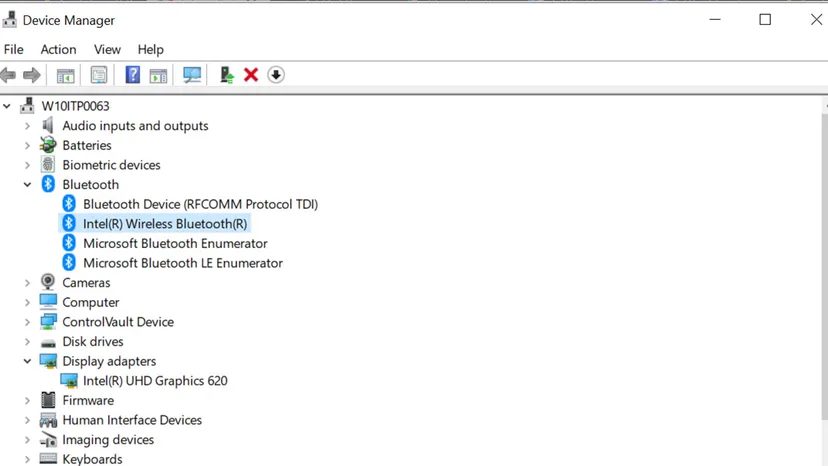
Sometimes hardware just gives up. You pop in a disc and nothing happens. If you dig into Device Manager, the culprit might be staring you in the face: a gray down arrow next to your DVD drive.
That icon means the device is disabled. It’s not broken physically. It’s just telling Windows to back off.
Fixing a DVD driver issue often starts with a simple right-click. Select the drive. Head to Properties. Click the Driver tab. You have two paths forward.
First, let Windows hunt for a fix. Click “Update Driver.” Windows will scan its own database. It looks for a match. Sometimes it works. Sometimes it returns nothing.
If the automatic search fails, you take the manual route. You need the correct driver file. Download it from the manufacturer’s site. Point Windows to that specific folder. Let it install.
This isn’t just about a stuck disc tray. Device Manager is a backend control panel. It’s ugly. It’s boring. It works. Tinkering here teaches you how components talk to the OS.
The gray arrow isn’t a death sentence for your hardware. It’s usually just a software handshake gone wrong.
Tracking Driver History
Want to see the timeline of your hardware’s software life? Click Properties again. This time, look for the Events tab.
It’s not always visible. If you don’t see it, your version of Windows might hide it in a different tab like “Details” or “Driver” depending on the OS build. But when you do find the event history, it’s fascinating.
You see exactly when a driver was changed. You see which version was active and when it rolled back. It’s a log of every update, crash, or manual install.
Why Drivers Matter
Drivers are the translators between your OS and the hardware. Without them, the DVD drive is just plastic and lasers. With them, it’s a data reader.
When a driver glitches, the device disappears from use. The gray arrow appears. You disable it. You re-enable it. Or you replace the driver entirely.
How to Restore a Disabled Drive
If the update fails, try uninstalling the driver. Restart the computer. Windows will detect the missing hardware on boot. It will reinstall the default driver. This fresh start often clears out corrupted files.
You can also check the “Enable Device” button. If it’s grayed out, the hardware itself might be disconnected internally. But if it’s clickable, that’s your first step.
Common Troubleshooting Steps
- Check physical connections if it’s a desktop.
- Try a different disc.
- Update the chipset drivers from the motherboard maker.
- Use the “Roll Back Driver” option if a recent update caused the issue.
Device Manager is rarely the first place you look. It’s the last resort for stubborn hardware. But once you know where to click, it becomes a powerful diagnostic tool.
The gray arrow goes away. The disc spins. You’re back in business.
For now.